
Onboarding Process
Upgrading 186 existing locations from the legacy app to Menu.ca Orders via Google Play Store internal testing. Zero physical site visits required.
Prerequisites
All locations are existing clients already equipped with:
Two-Phase Onboarding
Phase 2: Menu Switch — We coordinate DNS redirect to v3 menu, location goes live on new app.
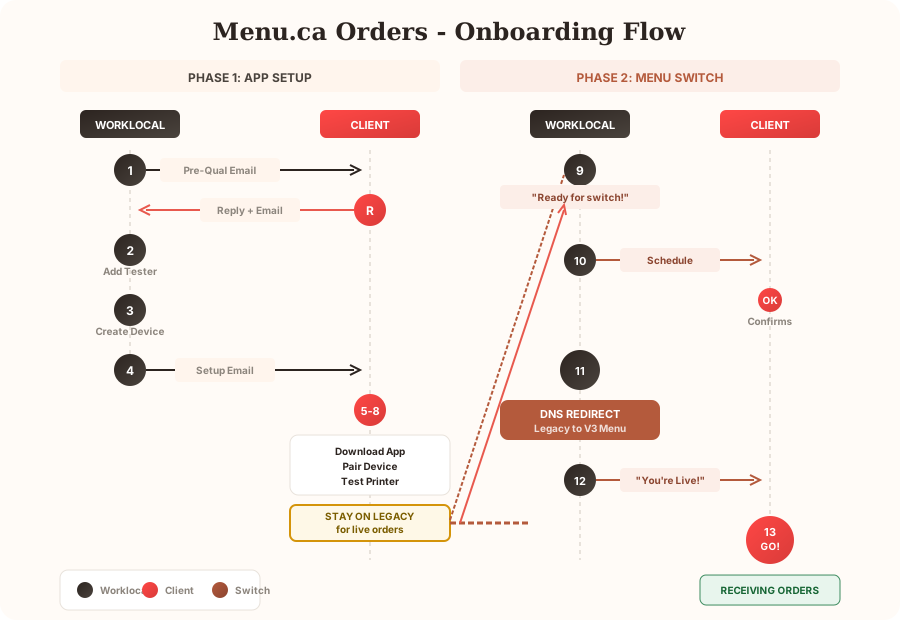
Onboarding Flow (Detailed)
AI-Powered Automation
Automated workflows handle the repetitive work, freeing you to focus on locations that need human attention.
Phase 1: App Setup
Location installs and tests the new app while staying on legacy for live orders.
- Verify the location has Play Store access
- Collect the Google account email used on their tablet
- Go to Google Play Console
- Select "Menu.ca Orders" app
- Navigate to: Testing → Internal testing
- Click Testers tab
- Add the location's Google account email
- Save changes
- Log into Menu.ca Admin Dashboard
- Go to: Tablet Management
- Click: Create New Device
- Assign to the correct location
- System generates: QR Code, Device UUID, Device Key
- Include download link, QR code image, UUID/Key backup, step-by-step instructions
See Email Templates tab for ready-to-use templates.
- Download app from Play Store internal testing link
- Scan QR code to pair device
- Verify printer connection (should auto-connect)
- Tap Test Print to confirm
- Configure preferences (auto-print, print view)
Phase 2: Menu Switch
Coordinated switch from legacy menu to v3 menu via DNS redirect. Scheduled before 11am opening.
- Test print successful on new app
- Switch back to legacy app for now
- Email confirmation: "New app ready, schedule menu switch"
- Coordinate switch time with location (within 1-2 days)
- Schedule before 11am (most locations open at 11)
- Confirm date/time with location
- At scheduled time, update DNS to redirect legacy menu → v3 menu
- Verify redirect is working
- Place test order to confirm flow
- Notify location: "Menu switched - you're live on the new app!"
- Confirm they received the notification
- Open the new Menu.ca Orders app
- Start receiving orders
- Uninstall the legacy app
Email Templates
Copy-paste ready emails for each stage. Automated via the AI workflow.
Phase 1: App SetupHi [Restaurant Name] Team,
We're rolling out an upgraded version of the Menu.ca ordering app for your tablet. The new app includes faster order notifications, improved printer reliability, and automatic updates.
To get you set up, please reply with the Google account email that's signed into the Play Store on your Menu.ca tablet.
How to find it: On your tablet, open the Play Store app, tap the profile icon (top right), the email is shown at the top.
Once we have this, we'll send you a download link and setup instructions. The process takes about 5 minutes.
Questions? Reply to this email or call 613-866-3429.
Thanks,
The Menu.ca Team
Hi [Restaurant Name] Team,
Your new Menu.ca Orders app is ready. Follow these steps to upgrade (takes about 5 minutes):
Step 1: Download the App
Open this link on your tablet, then tap "Install"
Step 2: Pair Your Device
When you open the app, tap "Scan QR Code" and scan this:
[QR CODE IMAGE]
Or enter manually: Device UUID: [DEVICE_UUID] / Device Key: [DEVICE_KEY]
Step 3: Verify Printer
Your printer is already paired from the previous app. Just tap Test Print in Settings to confirm it's connected.
Step 4: Set Your Preferences
Auto-Print: ON = orders print automatically. Print View: Kitchen, Customer, or Both.
Step 5: Confirm & Stay on Legacy
After testing, switch back to your current legacy app for live orders. Reply to this email: "New app ready, schedule menu switch."
We'll coordinate with you to switch your live menu to the new system (before 11am, within 1-2 days).
Need help? Contact brian@worklocal.ca or 613-866-3429
Thanks,
The Menu.ca Team
Hi [Restaurant Name] Team,
Your menu switch is scheduled for [DATE] at [TIME] (before you open).
What happens:
- We'll redirect your live menu to the new v3 system
- We'll send you a confirmation when it's done
- You'll then use the new Menu.ca Orders app for all orders
What you need to do:
- Have the new app ready on your tablet
- When we confirm, open the new app and uninstall the legacy one
- That's it!
Reply to confirm this time works for you.
Thanks,
The Menu.ca Team
Hi [Restaurant Name] Team,
Your menu has been switched! Orders will now come through the new Menu.ca Orders app.
Action needed now:
- Open the Menu.ca Orders app on your tablet
- Confirm you see it's connected and ready
- Uninstall the old legacy app
You're all set! Orders will start flowing through the new system.
If anything seems off, call us immediately: 613-866-3429
Thanks,
The Menu.ca Team
Before Email #1
- Location is in current rollout phase
Before Email #2
- Received Google account email
- Added to Play Store testers
- Waited 10+ min for propagation
- Created device in Dashboard
- Inserted QR/UUID/Key
Before Email #3 (Menu Switch)
- Location confirmed app tested
- Scheduled switch time
- Time is before 11am opening
Before Email #4 (Go-Live)
- DNS redirect completed
- Verified redirect working
- Test order successful
Rollout Timeline
A phased approach to minimize risk and refine the process as we go.
| Phase | Locations | Duration | Notes |
|---|---|---|---|
| Pilot | 10 | 1 week | Tech-savvy locations, direct contact |
| Wave 1 | 50 | 2 weeks | Refine process based on pilot feedback |
| Wave 2 | 75 | 2 weeks | Bulk rollout |
| Wave 3 | ~51 | 2 weeks | Remaining locations + stragglers |
| Buffer | — | +2 weeks | Follow-ups, slow responders, escalations |
Follow-Up Schedule (Automated)
| Day | Action | Mode |
|---|---|---|
| Day 0 | Send Email #1 (Pre-qualification) | Auto |
| Day 3 | If no response, send reminder | Auto |
| Day 7 | If still no response, phone call | Manual |
| After reply | Send Email #2 (Setup instructions) | Auto |
| After "ready" | Schedule menu switch, send Email #3 | Manual |
| Switch day | Execute DNS redirect, send Email #4 | Manual |
Risk Assessment
| Risk | Level | Mitigation |
|---|---|---|
| Printer Connection | Low | Already paired from v1 — new app auto-connects |
| Email Response Rate | Medium | 30-40% may need Day 7 phone calls. Automated reminders help. |
| Timeline Slippage | Medium | Built-in 2-week buffer. Expect 9 weeks total. |
| Menu Switch Coordination | Low | Scheduled before 11am. Location stays on legacy until confirmed. |
| DNS Redirect | Low | Easy rollback if issues. Test order verifies flow. |
Troubleshooting
| Issue | Solution |
|---|---|
| "App not available" error | Email not added to testers list yet. Wait 10 minutes and retry. |
| QR code won't scan | Use manual entry with UUID + Device Key provided in email. |
| Printer not showing | Ensure printer is ON. Should auto-connect. Tap "Scan for Printers" if needed. |
| Test print fails | Check printer has paper. Try power cycling the printer. |
| Orders not appearing after switch | Verify DNS redirect completed. Check app is open and connected. |
| Need to rollback | Revert DNS to legacy menu. Location uses legacy app until resolved. |
Support Contact
Need Help?
Most issues can be resolved remotely since all locations have compatible hardware.